AquaTick lets you log water directly on Apple Watch by tapping a cup amount. Watch logging is included without an account or a Pro subscription.
Check your devices first
You need an iPhone running iOS 26.0 or later and an Apple Watch running watchOS 10.0 or later. Download AquaTick from the App Store, install its Watch app on your paired Apple Watch, and open it.
The app supports English, French, Japanese, Korean, Polish, Simplified Chinese, and Spanish. The screenshot here is in English.
Choose cups and log a drink
- Use the separate Watch cup layout setting to choose up to six cups. Arrange them in one or two columns.
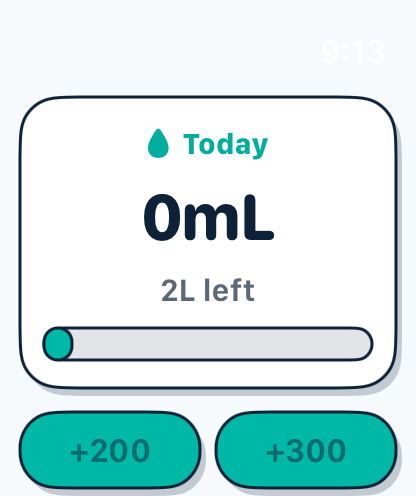
- After drinking water, open AquaTick on Apple Watch and tap the matching cup amount.
- Check the amount and progress on the Today screen. You can review previous records in the iPhone history screen.
iPhone Home Quick Add favorites and the Watch cup layout are separate settings. Home also supports up to six favorites; check the Watch layout for the cups you want on your wrist.
Which surfaces can actually log water?
| Surface | What it does |
|---|---|
| iPhone app and Quick Add widgets | Log water intake |
| Apple Watch app | Log intake using your selected cups |
| Live Activity and Dynamic Island | Show progress only; they do not record intake |
Are Apple Health or iCloud required?
Both are optional. Apple Health integration is included without Pro. Pro's optional iCloud sync is a separate feature for hydration records; cup photos stay on the device. The free version includes ads, while Pro removes ads. Current regional subscription prices are shown in the app.
See the free and Pro comparison and privacy policy for details. AquaTick is a hydration habit tracker, not a medical device or a source of medical advice.
If a cup is missing
Check the Watch layout separately from your Home favorites, including the chosen amounts and column setting. If the issue continues, contact support with your iPhone and Watch OS versions and the screen where it happens.